I’ve lost count of how many times I’ve been cheated by a “High Definition” sticker on a web tool.
You find a background remover that looks promising. It has a slick UI and a bold “Remove background in HD” button. You upload your 4K professional studio shot—a sharp, 20MB file—wait for the progress bar, and download the result. But the moment you zoom in to 100% in your editor, the truth hits you: the edges are blurred, the resolution has been silently downsampled to 720p, and the fine details of your product are gone.
That is the HD Resolution Lie. In 2026, many tools are essentially “pixel thieves.”
Why cloud tools downsample your professional work
It comes down to one thing: server costs. Bandwidth and GPU time are expensive. For a cloud-based background remover, processing a full 4K image at native resolution is a heavy burden on their infrastructure. To save money, they silently shrink your image behind the scenes before the AI even touches it. They give you back a “clean” cutout, but it’s a blurry ghost of your original file.
For a pro designer or photographer, this is a betrayal of the deliverable quality.
Can I get a free transparent PNG maker bulk without quality loss?
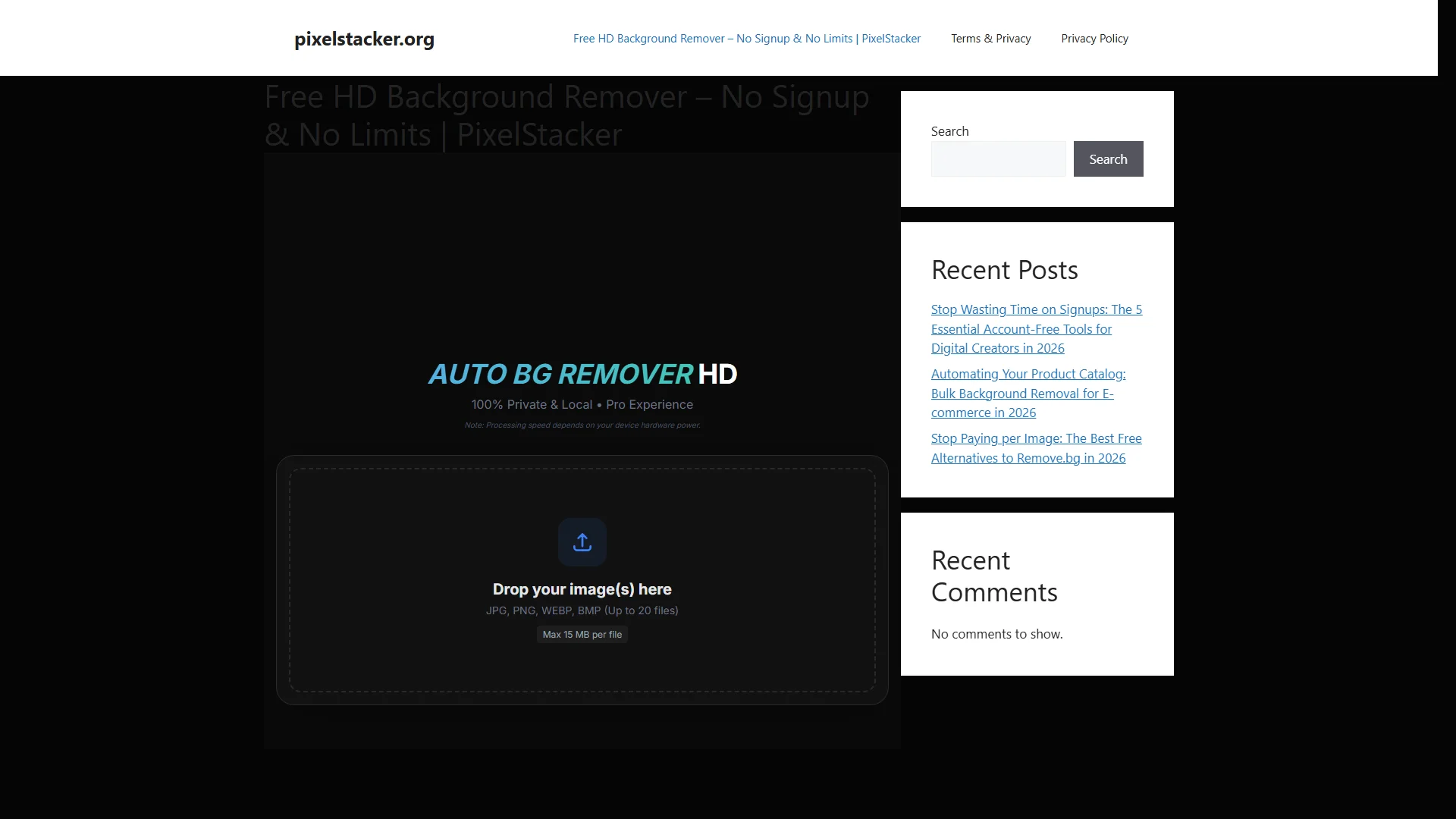
Yes, but you have to look for tools that shift the processing from their servers to your hardware. A Free Transparent PNG Maker Bulk like PixelStacker doesn’t shrink your files because it doesn’t have to pay for bandwidth.
By using Client-Side WASM, the heavy lifting happens in your browser sandbox. If you upload a 5000px image, you get a 5000px transparent PNG back. There is no middleman trying to save on server costs by destroying your resolution.
The “Blurry Edge” Syndrome: Alpha Channel Sabotage
The real difference between an amateur and a professional cutout is in the alpha channel integrity. Many AI models use “fuzzy masking” to hide their lack of precision. They blur the edges to make the cutout look “natural” at a distance, but up close, it looks like it was cut with a sponge.
A high-end Transparent PNG Maker uses precise edge detection that respects hair, fabric, and complex reflections. It maintains the sharp transition between the subject and the transparency, allowing you to place your cutout on any background without that tell-tale “IA halo.”
How to audit your background remover’s quality:
1. The Zoom Test: Zoom to 400% on a thin edge (like a strand of hair). Is it sharp or pixelated?
2. The Size Match: Compare the pixel dimensions of your input and output. If they don’t match, you’ve been downsampled.
3. The Midnight Test: Place the cutout on a pitch-black background. Any white “halo” means the alpha channel is poor quality.
Alex Carter’s Verdict
Don’t settle for “good enough” pixels. Your reputation as a digital creator is tied to the quality of your source files. Use a truly free transparent PNG maker bulk tool that respects your original resolution and gives you the HD results you actually need.
You might also like:
- Why WASM is the secret to pixel-perfect extraction in 2026.
- Building your professional design stack for $0.